Logging in is the first step in being able to interact with the CMS and make any changes you need.
In order to enter your personal username and password, you should add /login after your website's address. So, if you're website is https://www.mywebsite.co.uk, you should type https://www.mywebsite.co.uk/login and press enter.
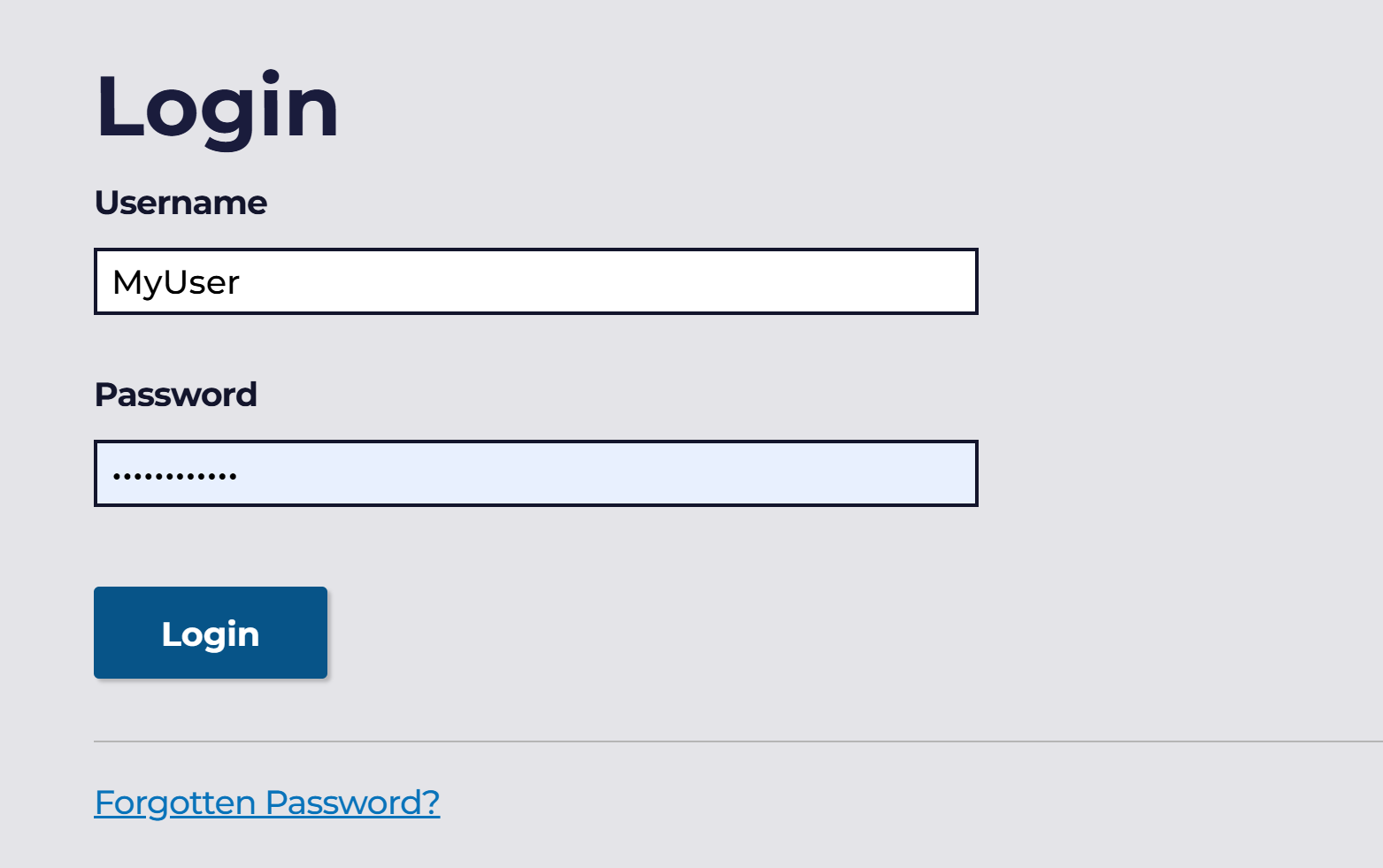
Having done so, you should see a screen like the following, and be able to add your username and password, before logging in.
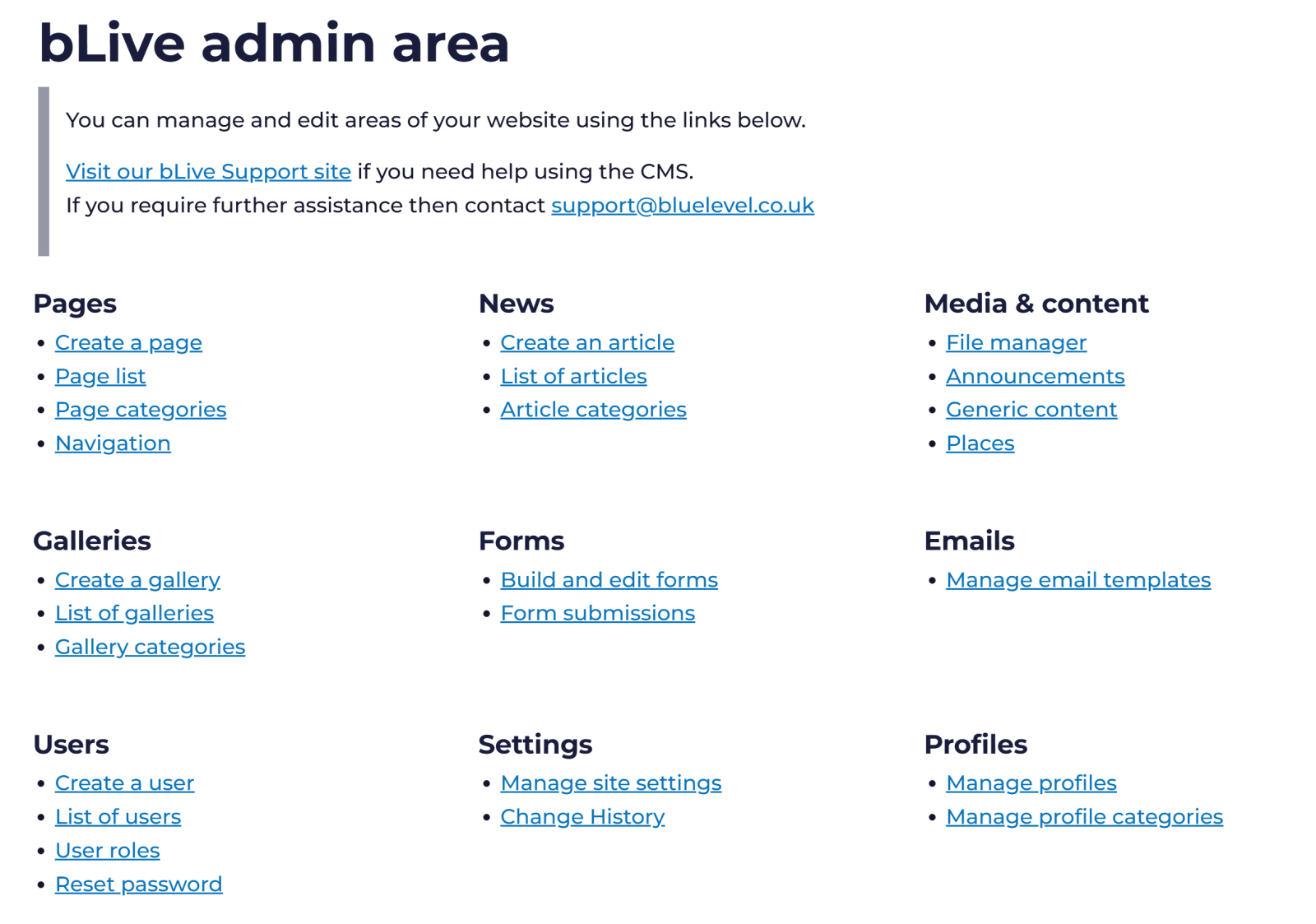
Once you have successfully logged in, two key things will happen.
- You'll see a blue bar appear at the top of your screen.

Cannot log in?
If you are unable to log into the website then click the 'Forgotten Password' link.
Enter your username in the textbox then click the button. If your username exists (and is not locked out) then you will receive an email with instructions on how to change your password.
If your account has been locked out, then you will need to contact your website administrator to unlock your account.
(Accounts are automatically locked if the password has been incorrectly guessed 5 times).