Hyperlinks take the user to either another external or internal webpage, when clicked. Some hyperlinks might also take the user to a particular area on a page, called an anchor. This page guides you through how to add a hyperlink, how to add an anchor, and modify any other settings that are available to you.
- Text and image hyperlinks
- Advanced options
- Anchors
Text and image hyperlinks
Text and image hyperlinks are relatively straightforward to add to your site. You need to add text and/or the image you want to become the link in the same way as you normally would. For text, you should highlight the text and click the add hyperlink button. When you do this, a pop-up will appear that will allow you to paste the relevant link in. Your hyperlink has now been created. For images, double-click on the image, and switch to the link tab. You can now add a URL link in the same way.
Advanced options
Target
Under the tabs that appear when you add a link, you’ll see one called target. This tab includes some different options on how the link will open. For example, will the link open in a new tab on the user’s browser, or in the same tab?
By default, internal links (links to another page on your site) will open in the same tab, while external links (links to a page on a different site) will open in a new tab.
Advanced
Under the advanced tab, there is only one particularly relevant option. Under stylesheet you can add “btn” to turn your link into a button. As such, your link will take on styling to look like a button, as opposed to underlined text. The styling of the button will mirror however buttons normally look on your site.
Anchors
Anchors are essentially tags you can add to a particular area on a page. Think of it as putting a pin on a map to show a precise location. You can give this anchor a name (any name you like). Having added an anchor, you can then add a link that takes the user to this anchor, rather than just the page the anchor sits on.
As an example, a table of contents, like the one on this page, can be configured so the user can click the items in the table of contents and be taken down the page to that particular header/bit of content. This is done by adding anchors to each of the relevant headers/bits of content and creating links in a table of contents which link to these anchors.
Linking to an anchor on the same page
Adding an anchor is as straightforward as clicking the little flag icon in the text editor options, and adding a name of your choice. This is pictured below.
Having done this, your anchor now exists on the page. To create a hyperlink to it, select either the text or image you want to turn into a hyperlink.
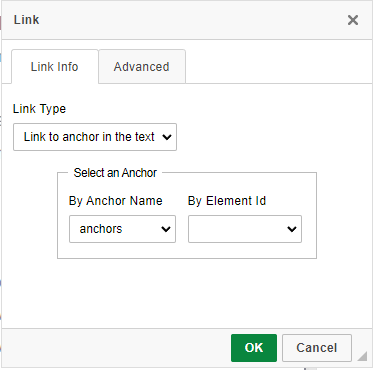
When linking from text, you'll want to add a hyperlink in the same way as you usually do, however, instead of selecting the URL option in the hyperlink options, you'll want to select "Link to anchor in text" from the drop-down menu. Having done this, you'll be given a list of any anchors you've added to the current page. Note, you will not be able to see anchors you've added to different pages on the site. Simply choose the relevant anchor, and your link is complete. Find image demonstrations below.
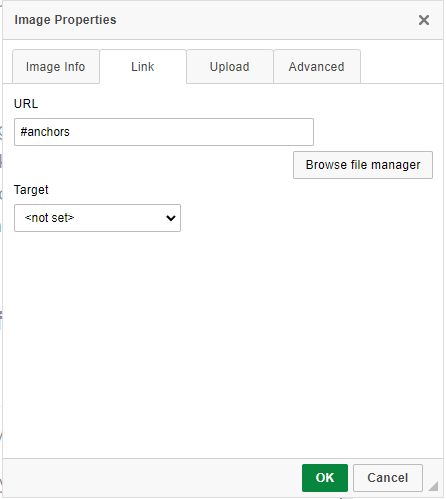
When linking from an image, you need to go to the "link" tab, as described above. Here, you'll see only the option for URL links, with no drop-down like there is for text. Instead, you'll need to type a hashtag (#) followed immediately by your anchor name. Having done this, you're link is complete. Find image demonstrations below.
Linking to an anchor on a different page
As mentioned, anchors are page specific. If you create a link that links to an anchor, it will only search the current page for that anchor. In order to force the link to go to a different page and find and anchor there, you need to tell it which page to look at.
As an example, I might want to link from by "about-us" page to "information about the director", which is a particular paragraph on a page about senior management. To do this, I would:
- Add an anchor to the relevant paragraph on the senior management page.
- Let's give the anchor the name "director".
- Let's give the senior management the URL "/senior-management".
- Go back to the "about-us" page and highlight the relevant text/image I want to turn into a link.
- When adding the link (for either text or image) leave it on URL as the option from the drop-down.
- Type in /senior-mangement#director.
This process can be followed for any similar link you want to create. Crucially you have to specify the page using a forward slash and the page name, following immediately by a hashtag and the name of the anchor.
Using this link format is also how you can add a link in your main navigation to an anchor on any page in the site. See the pages and navigation page for more information on managing your menu.
 Top accessibility tips
Make sure links have relevant names which make it clear what happens when users click the link.
Avoid link names such as CLICK HERE, as users will have to read through surrounding text to understand the purpose of the link.
Having discernible names for links also improves SEO.