In order to best understand what you can do with your new site, and how to make changes, you need to understand the basics of the CMS and how it works.
- Page templates
- The Blue Bar
Page Templates
During the design process of your website, we would’ve collectively decided upon a particular layout with you. When creating your page templates, this layout will be taken into account. Most commonly you will have one homepage template and one subpage template, though having multiple subpage templates is also possible.
When you edit a page that has no content on it, you will see multiple grey striped boxes. These are placeholders to which you can add content. The layout of these placeholders will mirror your site designs and enforce the particular layout of the page.
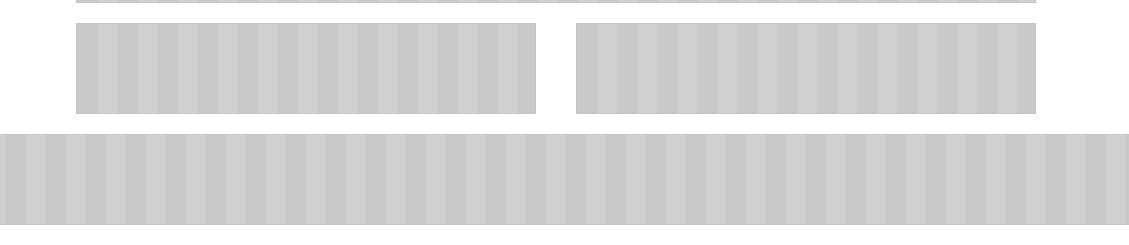
The organisation/layout and size of these placeholders are not editable by you, as they are coded into the website. Thus, you will require our input if you wish to change them. This is something we are happy to do during the build process of the website, giving you as much flexibility as possible.
The Blue Bar
When you log in you, will notice a blue bar at the top of the site. This blue bar has a number of features on it that are crucial to editing your site.

Initially, you will notice that the blue bar has three buttons on the right hand side: page settings, Admin Area and Live.
- Page settings allows you to see the settings of the particular page you’re on.
- Admin Area takes you back to the Admin Area.
The drop-down menu, which is on Live by default, explains which view of the site you currently have. In total, there are three views.
- Live: This is how the site currently looks to a user.
- Edit: This is the view you need to switch to in order to see placeholders and add/change content.
- Preview: This is how the site would look to your users IF you save your changes. This acts as a fail-safe: you can make as many changes as you need without them being visible until you’re happy to publish your changes.
In Edit mode, you’ll notice two further buttons appear in the blue bar. To the far right you’ll see Restore. This will remove any changes that you have made to the site that are not yet published (see below). On the far left, you will see Controls. This drop-down allows you to add different elements to placeholders, like content (copy/images/video etc.), forms, news articles etc.
In Preview mode, you’ll notice one further button on the blue bar. To the far right, you’ll see Publish. Provided you are happy with any changes you’ve made to the page, click publish to make these changes live.